
How do I save a draft order
Mailform is the easiest way to print and mail a letter, online or offline. When preparing complex mailings, multiple steps are sometimes needed and this can take some time. For privacy and data security, Mailform does not automatically save your files: however you can easily save your work and resume it later with a draft order.
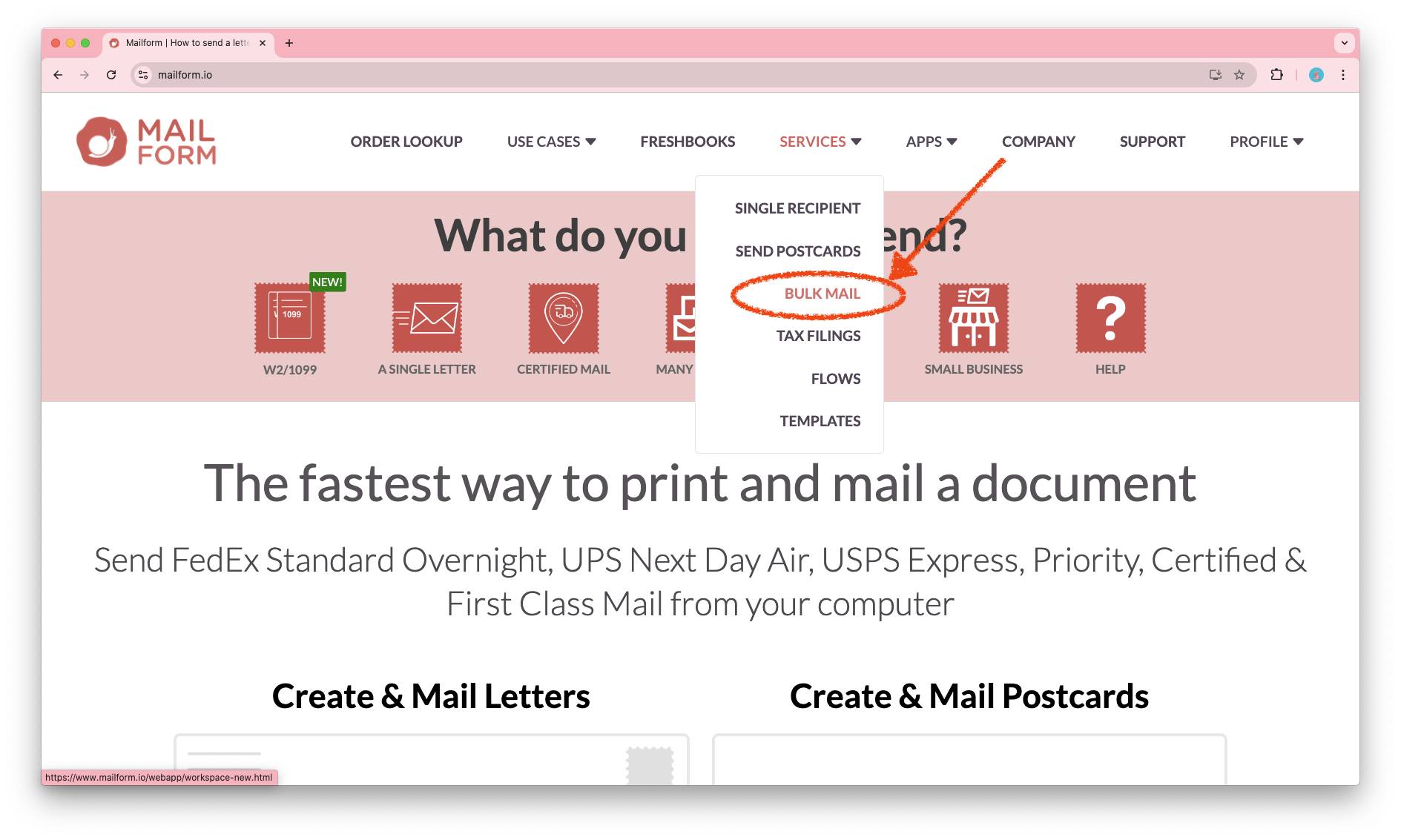
To create a draft order, first sign in to your Mailform account, then visit the Bulk Mail page using the menu link or by visiting https://www.mailform.io/webapp/:
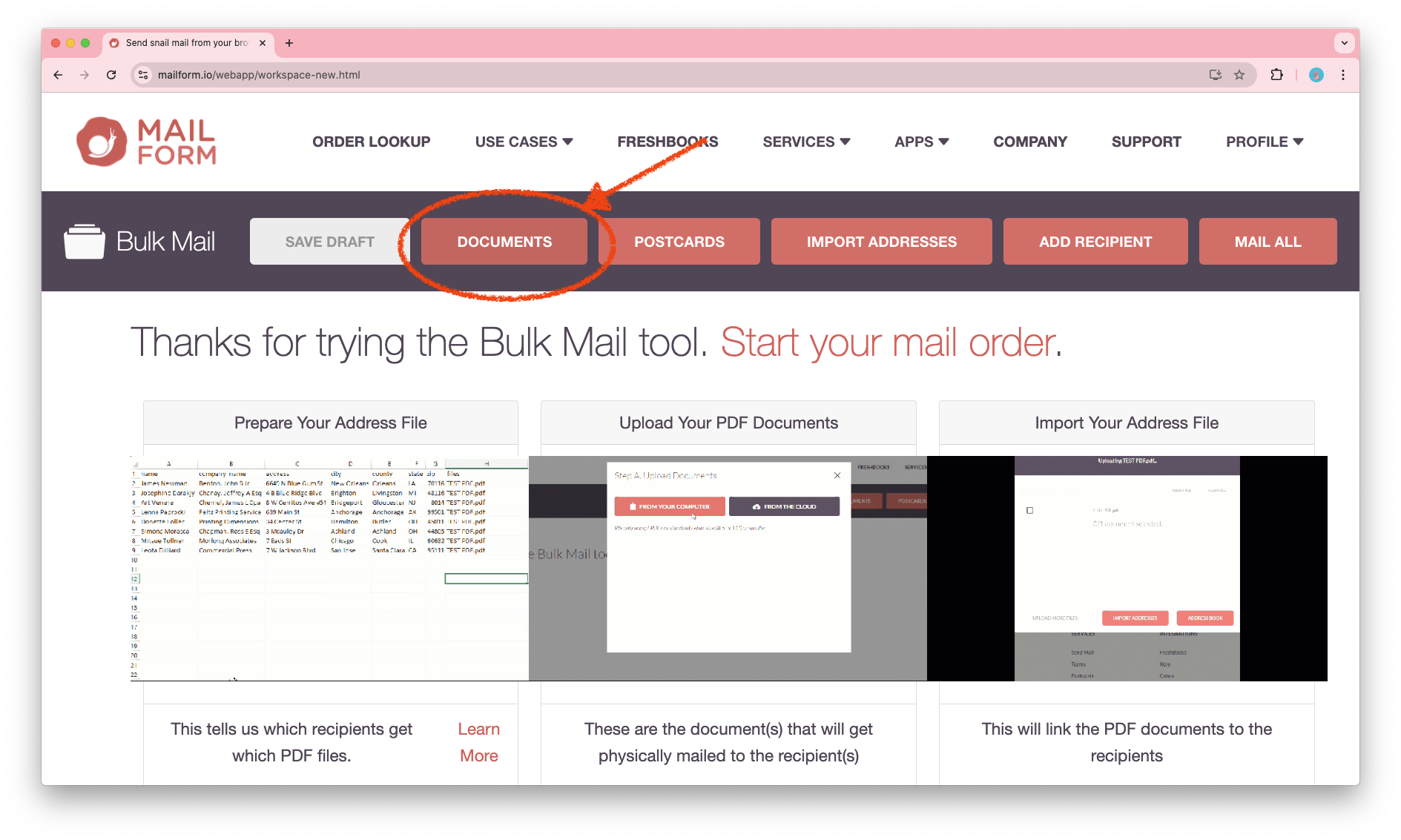
On the page, click the Documents button to upload a file:
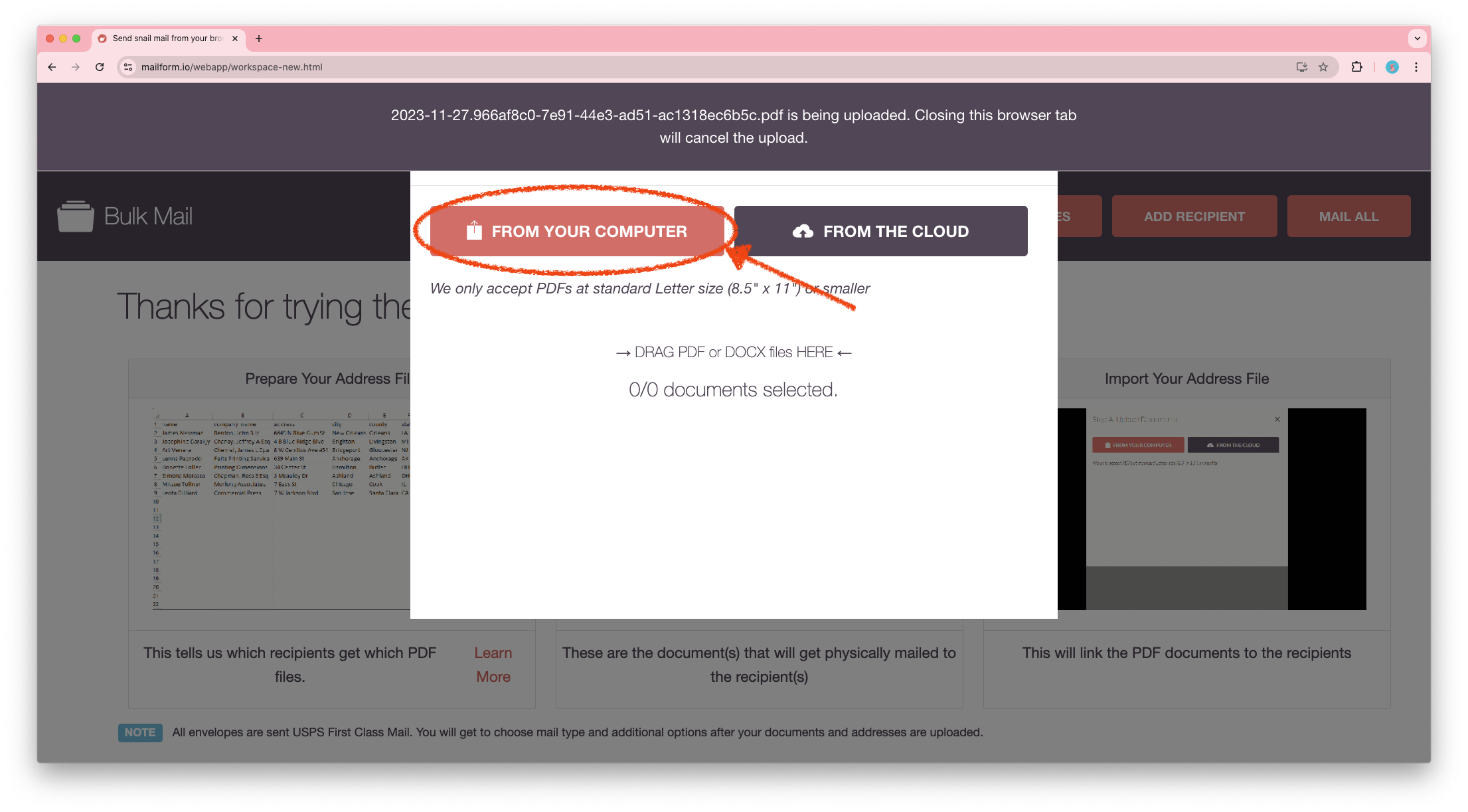
On the file upload screen, either click the From Your Computer button or drag and drop a file from your computer. You can also click the From The Cloud button to select files stored in Google Drive, Microsoft OneDrive, Dropbox or Box cloud storage. Once you select a file you will see an upload indicator.
Once you've uploaded all the files and made any other changes you would like, click the Save Draft button.
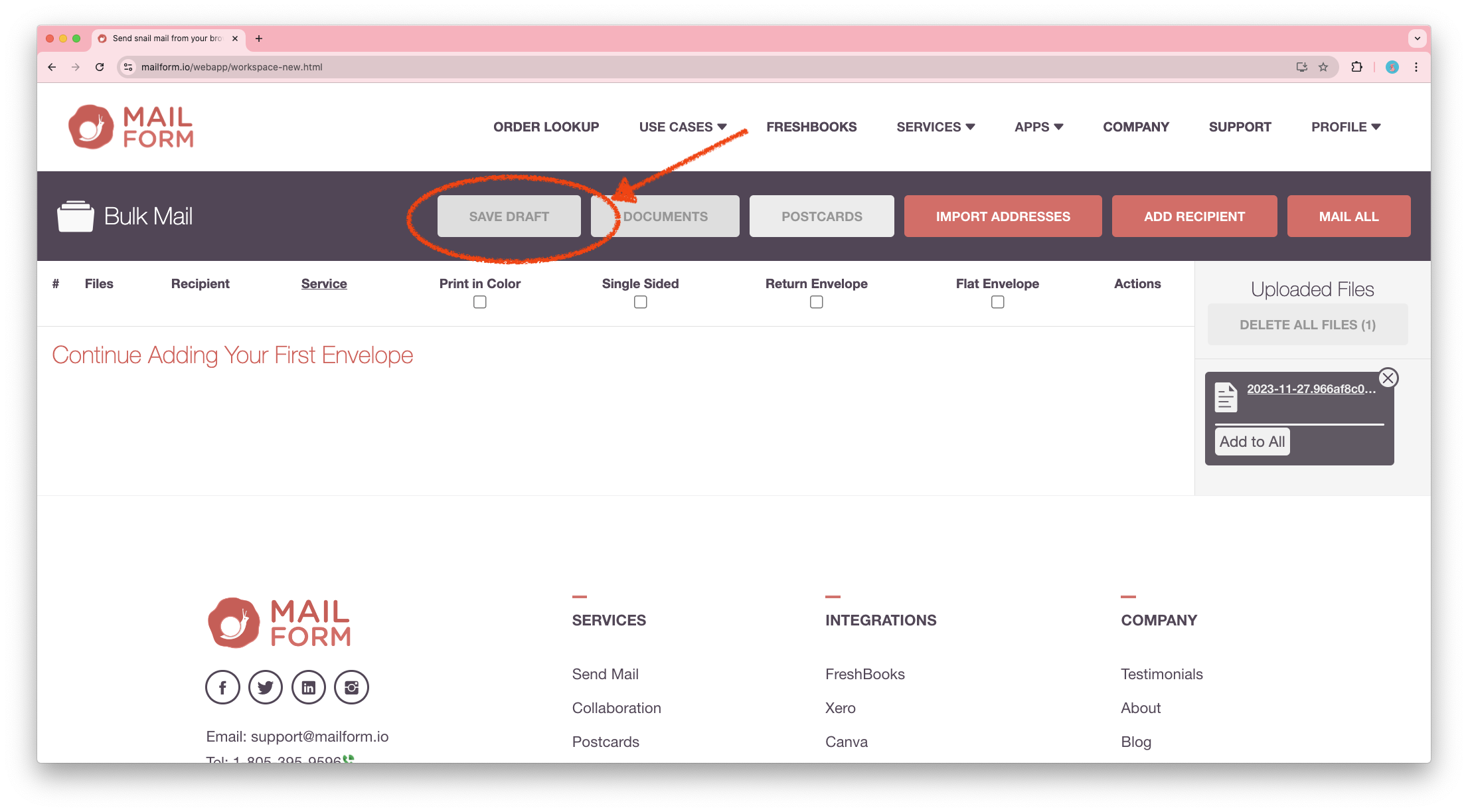
The draft will be saved.
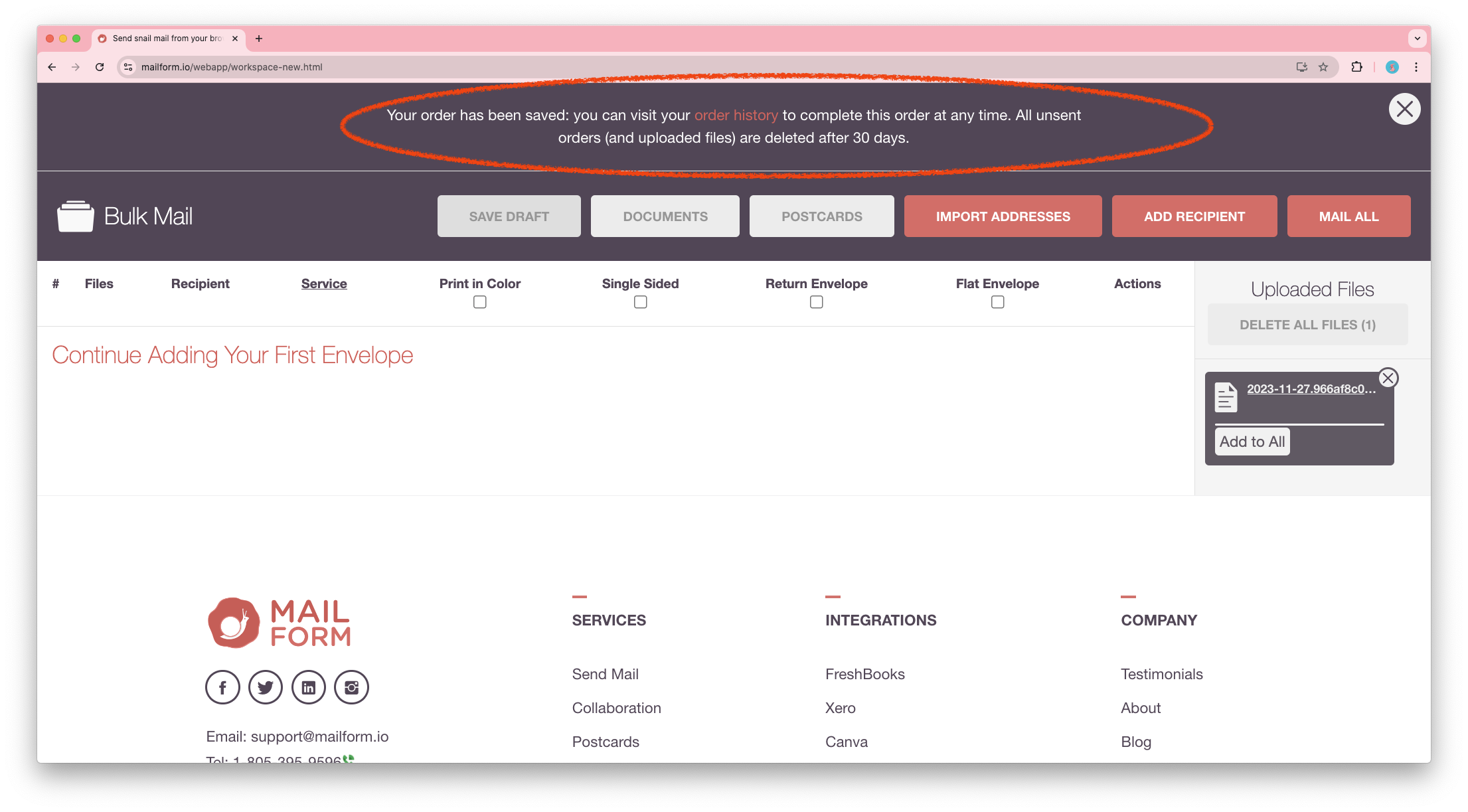
When you are ready to resume work on the order, visit your order history at https://www.mailform.io/webapp/docs.html and click on the Complete button next to the draft.
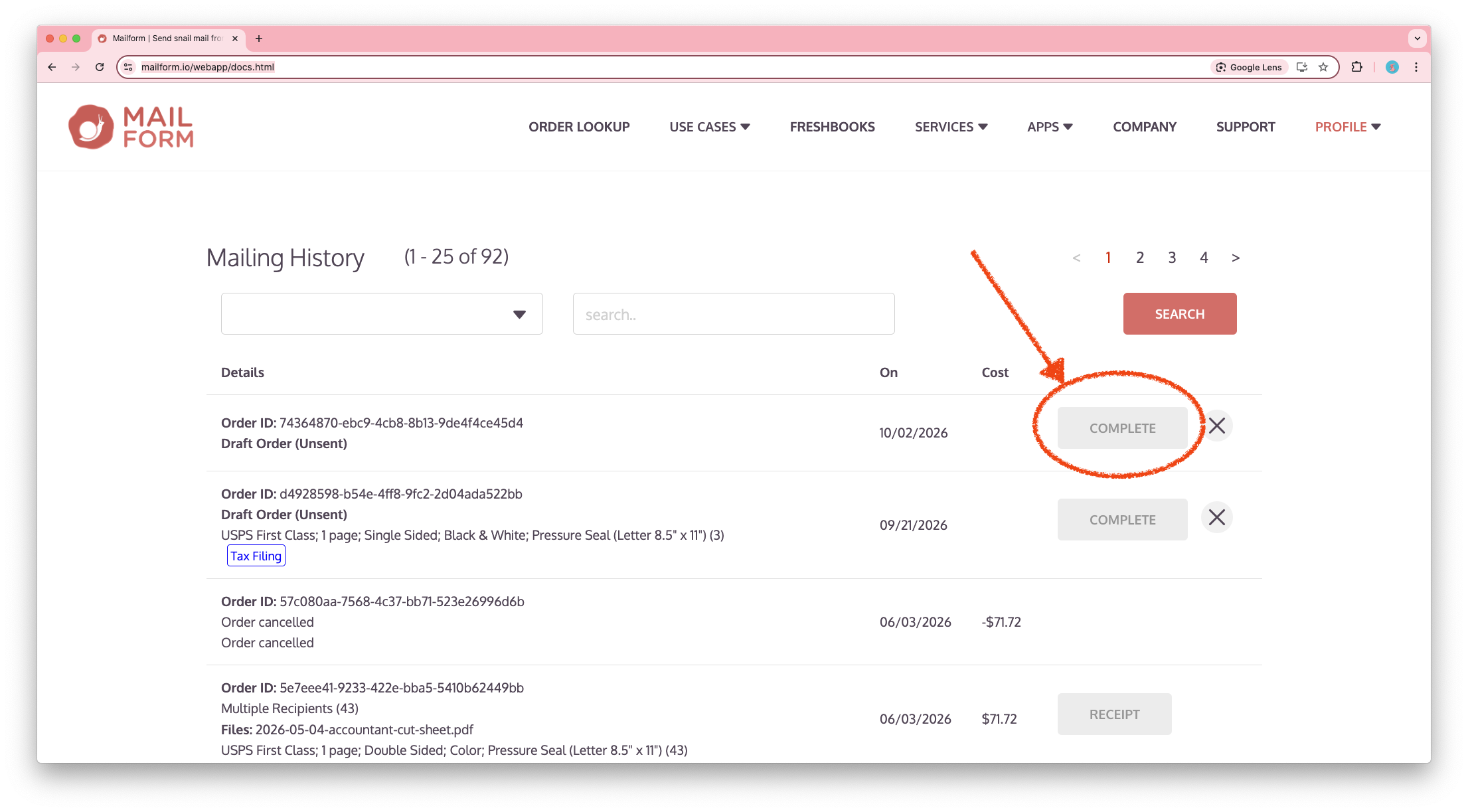
You can then continue working on the order.
Thanks once again for using Mailform.